Here’s a step-by-step tutorial to install the MetaMask Wallet Chrome Extension safely:
Step 1: Download MetaMask from the Official Source
1. Open Google Chrome and go to the official MetaMask website:
2. Click "Get MetaMask" → Choose "Install MetaMask for Chrome" (it will redirect to the Chrome Web Store).
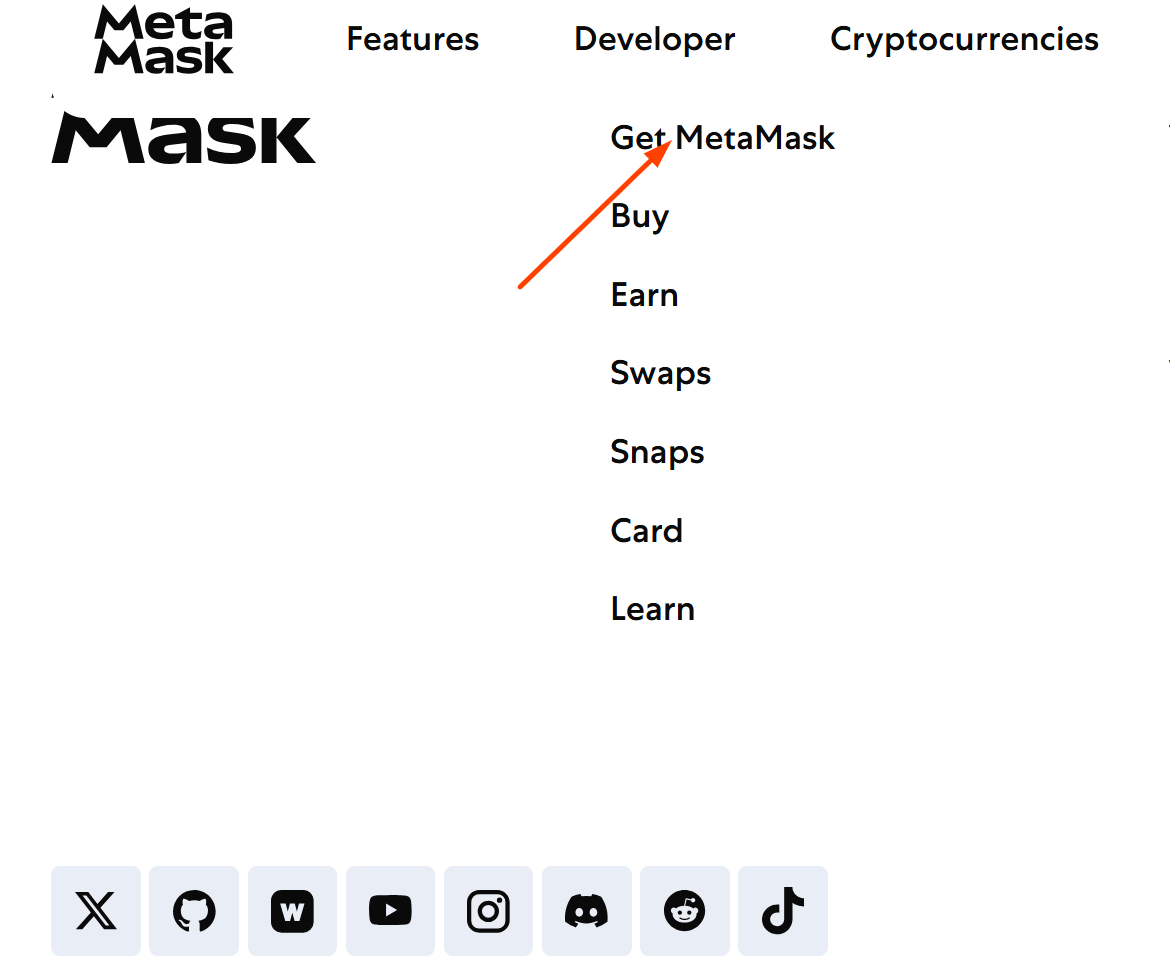
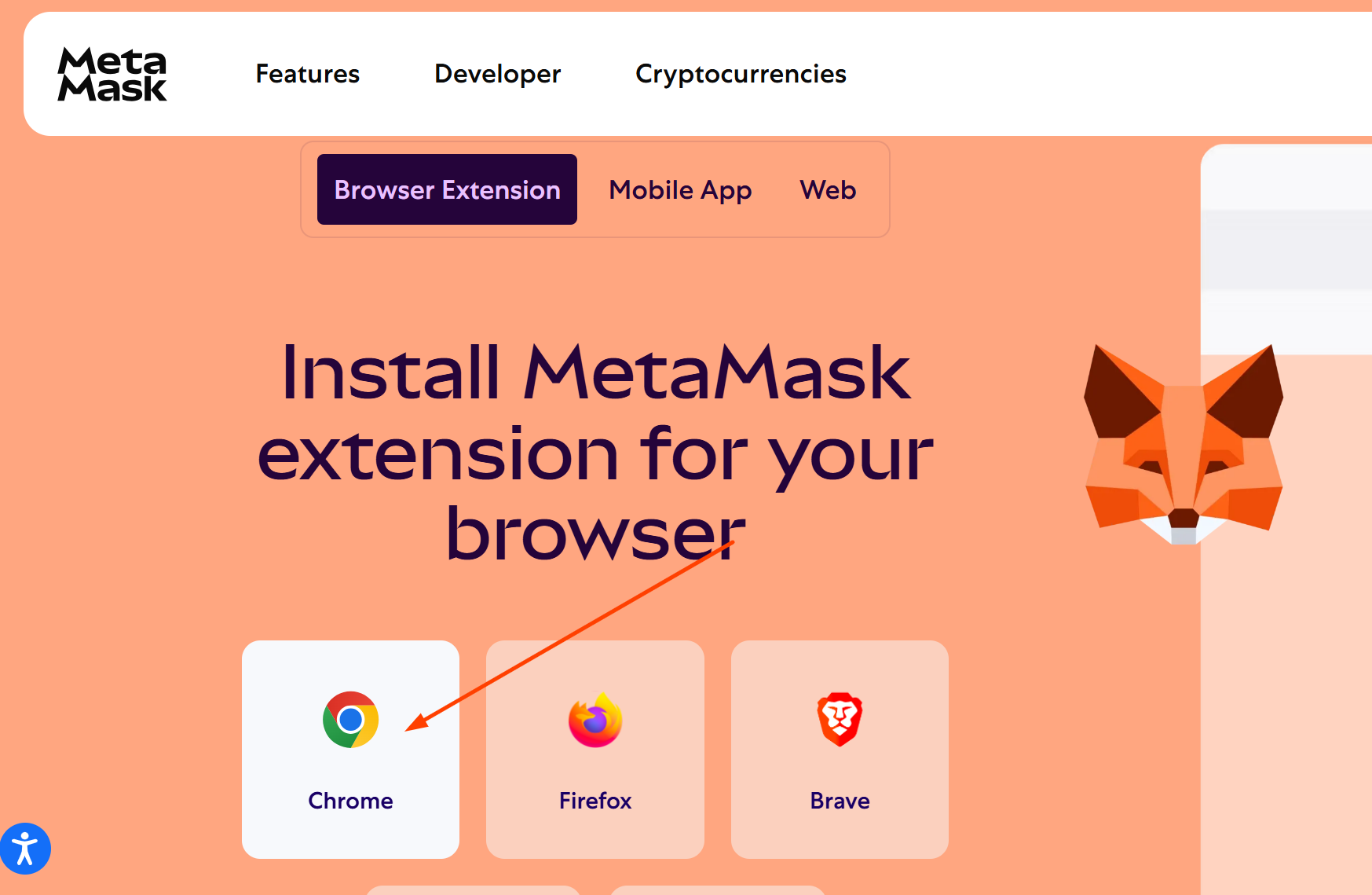
3. Alternatively, go directly to the Chrome Web Store:
🔗 [MetaMask Chrome Extension](https://chrome.google.com/webstore/detail/metamask/nkbihfbeogaeaoehlefnkodbefgpgknn)
⚠️ Warning: Only download from official sources to avoid scams.
Step 2: Add MetaMask to Chrome
1. On the Chrome Web Store page, click "Add to Chrome".
2. A pop-up will appear → Click "Add Extension".
3. The MetaMask fox icon (🦊) will appear in your Chrome extensions bar (top-right corner).
Step 3: Set Up Your Wallet
1. Open MetaMask by clicking its icon.
2. Click "Get Started".
3. Choose:
- "Create a New Wallet" (for a new wallet) or
- "Import Wallet" (if you have a recovery phrase).
4. If creating a new wallet:
- Create a strong password (this is for the extension only, not your seed phrase).
- Back up your Secret Recovery Phrase (12 words).
⚠️ Never share this phrase! Store it offline (written on paper).
- Confirm the recovery phrase to finish setup.
Step 4: Secure Your Wallet
- 🔒 Enable auto-lock in Settings for security.
- 🛡️ Bookmark MetaMask’s official site to avoid phishing links.
- ❌ Never enter your seed phrase on any website.
Step 5: Start Using MetaMask
- Receive Crypto: Share your wallet address (starts with `0x...`).
- Send Crypto: Enter the recipient’s address and confirm transactions.
- Explore dApps: Connect MetaMask to decentralized apps (like Uniswap, OpenSea).
Troubleshooting
- If MetaMask doesn’t appear, pin it by clicking the puzzle icon (Extensions) → Pin (📌).
- Clear cache or reinstall if issues persist (but never lose your recovery phrase!).
🚀 Done! You’ve installed MetaMask and can now manage Ethereum and other supported blockchains securely.