Introduction
In the blockchain world, the SUI chain stands out as an efficient Layer 1 platform known for its high throughput and low latency. It supports various decentralized applications (dApps), including token issuance, NFTs, and DeFi projects. With the rapid growth of the SUI ecosystem, token management has become a key focus for developers, project teams, and investors. Among management features, the "token blacklisting" function is a crucial security mechanism. It allows token creators or administrators to add specific addresses to a blacklist, preventing them from transferring tokens, trading, or performing other operations. This is particularly useful for preventing fraud, money laundering, or malicious activities.
Blacklisting tokens is not necessarily a permanent penalty; many tools also support "unblacklisting" to restore an address's normal permissions when necessary. This tutorial, based on the GTokenTool platform (a one-click token issuance tool), details how to blacklist and unblacklist tokens on the SUI chain. GTokenTool simplifies operations on the SUI chain, making it accessible even for casual users.
Why is blacklisting needed? Imagine you've launched a token project and discover that certain addresses are involved in fraud or violate community rules. Without a blacklisting mechanism, these addresses could continue transferring tokens, potentially causing greater losses. By blacklisting, you can freeze token operations for these addresses, protecting the ecosystem's security. Simultaneously, the unblacklisting feature provides flexibility, avoiding excessive penalties. This tutorial is designed for SUI chain token issuers, project administrators, or security operations personnel. The entire process requires no programming knowledge – just a browser and a wallet.
Prerequisites: Setting Up the Basic Environment
Before starting the blacklisting process, it's essential to prepare the necessary tools and resources. This step is critical because operations on the SUI chain rely on wallets and network connectivity. Here are the detailed steps:
-
Install a SUI-Compatible Wallet
The SUI chain supports multiple wallets, but GTokenTool recommends using the Suiet wallet or the SuiWallet browser extension. These are easy-to-install and use browser extensions.Why choose these wallets? They support smart contract interactions for SUI's Move language. Blacklisting operations essentially involve calling contract functions, and these wallets handle transaction signing seamlessly.
-
Installing Suiet Wallet: Visit the Suiet website (https://suiet.app) or the Chrome Web Store, search for "Suiet Wallet," and install it. After installation, create a new wallet or import an existing one. Be sure to back up the seed phrase – it's the only way to recover your wallet. Suiet supports multi-chain switching, which is convenient for SUI Mainnet operations.
-
Installing SuiWallet: Similarly, search for "Sui Wallet" in your browser's extension store, install it, and set up a password and seed phrase. SuiWallet is developed by the official SUI team and emphasizes security.
-
For mobile users, the OKX Web3 Wallet is recommended. It supports the SUI chain and has good compatibility. It's advisable to avoid using TokenPocket (TP Wallet) as it might cause errors during operations like logo uploads or other specific functions.
-
Prepare SUI Tokens
Your wallet needs to hold at least 2 SUI tokens. These are used to pay for transaction gas fees. If your balance is insufficient, transactions will fail, interrupting the process. How to get SUI? You can purchase them on exchanges like Binance or OKX and then withdraw them to your wallet address. Alternatively, for practice, you can obtain testnet SUI from a SUI faucet. For Mainnet operations, ensure a stable network connection and try to avoid periods of high gas fees. -
Familiarize Yourself with the GTokenTool Platform
GTokenTool is an all-in-one tool suite for the SUI chain, supporting token creation, liquidity addition, and security management. Visit https://sui.gtokentool.com to explore the interface. The platform supports Chinese, and you can switch languages using the option in the top right corner. -
Other Considerations
Preparation typically takes about 10-20 minutes. Once complete, you can proceed to the actual operations.
-
Ensure your browser is up-to-date (e.g., Chrome or Firefox).
-
Disable VPNs to avoid network latency.
-
If you are the token creator, you must possess administrator privileges (typically the wallet address used during issuance). Otherwise, the blacklisting function will not be accessible.
-
Mobile users: Access the platform using the in-app browser mode of the OKX Web3 Wallet to avoid compatibility issues.
Detailed Process for Blacklisting Tokens
The blacklisting operation is performed through GTokenTool's web interface. The entire process is visual and requires no coding. Here is a step-by-step breakdown:
-
Access the Blacklist Page and Connect Your Wallet
Why connect the wallet first? Because blacklisting involves on-chain transactions that require wallet signatures. Ensure the network matches, or the transaction will fail.
-
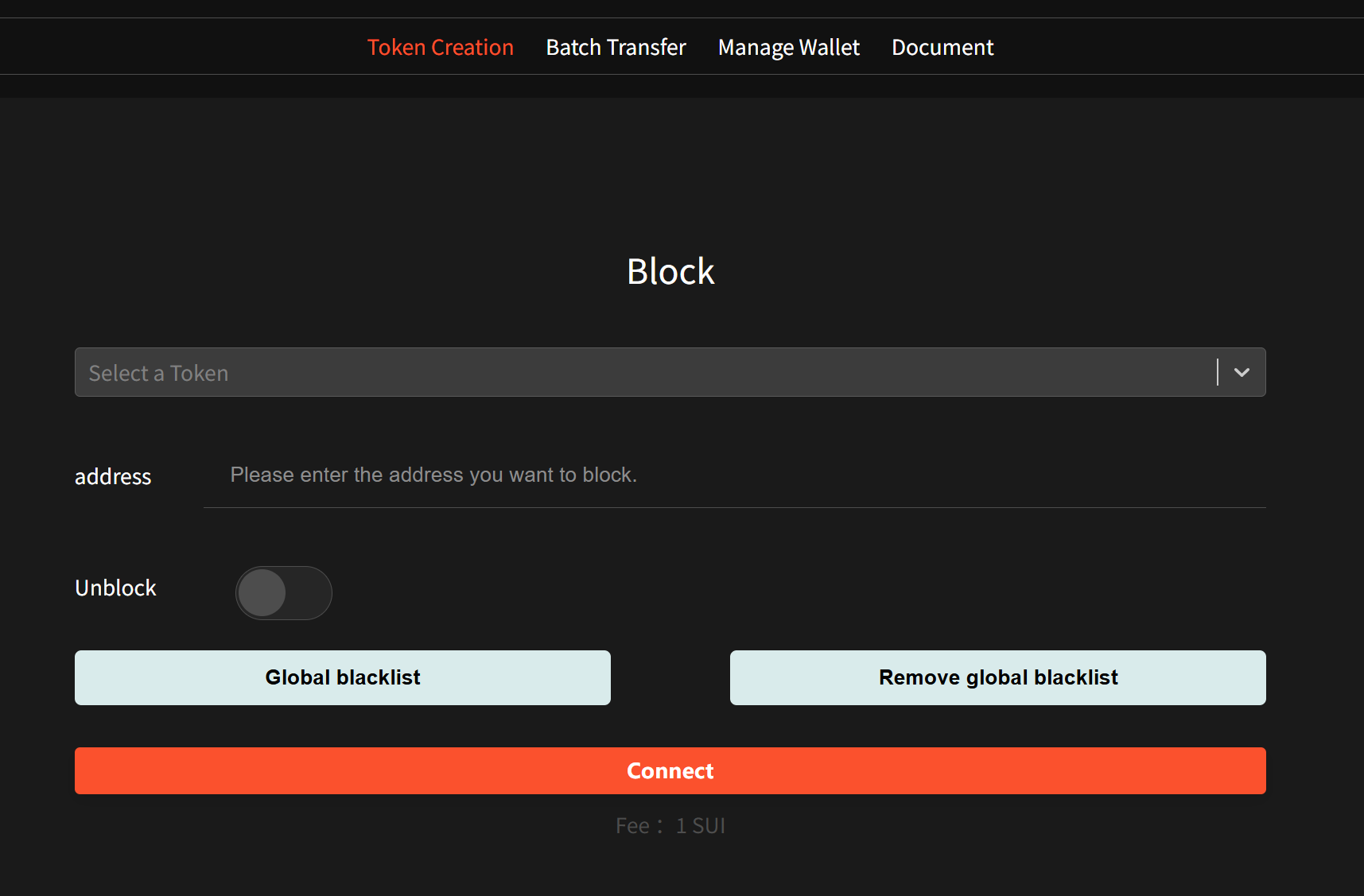
Open your browser and go to the blacklist page: https://sui.gtokentool.com/Token/block
-
In the top right corner, select the "Main" network. If you are testing for the first time, you can choose "Testnet" first.
-
Click the "Connect Wallet" button and select your installed wallet (Suiet or SuiWallet). Your wallet will pop up a connection request – confirm it. Once successfully connected, the interface will display your wallet address and balance.
-
Select the Token to Manage
Tip: If you have many tokens, you can search by token name or contract address. GTokenTool supports custom tokens; if you've issued a new token, it should automatically appear in the list.
-
In the central part of the page, find the token selection dropdown menu. Click it to list the tokens associated with your wallet (usually tokens you created or manage).
-
If the list is empty or doesn't show your target token, click the "Reload Tokens" button. The platform will query on-chain data for your token information.
-
After selecting the token, the interface will display basic information like the token symbol and total supply. Verify this is correct before proceeding.
-
Enter the Address to Blacklist
Why blacklist an address? At the smart contract level, blacklisting modifies the address's permissions, preventing it from calling the transfer function. This is a common implementation, similar to ERC-20 standards, adapted for SUI.
-
In the "Input Address" field, paste the target SUI address. This can be any address suspected of violations, such as a scam or hacker address.
-
Address Format: SUI addresses start with "0x" and have a fixed length. Ensure you copy it correctly to avoid invalid operations due to input errors.
-
Can you blacklist multiple addresses at once? The current version typically supports single-address operations. If you need batch operations, you may need to repeat the steps or contact platform support.
-
Execute the Blacklisting Operation
-
Click the "Blacklist" button. Your wallet will pop up a transaction confirmation window, showing the estimated gas fee (usually 0.1-0.5 SUI). Carefully review the transaction details, including the contract function being called (e.g.,
blockAddress). -
Click "Confirm" in your wallet to submit the transaction to the SUI chain. The platform should display an "Operation Successful" message and provide a Transaction Hash.
-
Click the hash to view the transaction status on a SUI block explorer (e.g., https://suiscan.xyz). Transaction confirmation time is typically a few seconds to a few minutes, depending on network congestion.
-
If the transaction fails, common reasons include: insufficient gas fees, network issues, or lack of permissions. Refresh the page and try again.
-
Verify the Blacklisting Effect
-
After the operation, search for the target address on a SUI block explorer to check its token balance and transaction history. A blacklisted address should be unable to transfer tokens, though it might still be able to receive them.
-
Test method: Try sending tokens from the blacklisted address using another wallet. This should fail and return an error (e.g., "Address blocked").
Process for Unblacklisting Tokens
Unblacklisting is the reverse operation of blacklisting, used to restore an address's permissions. The process is similar but requires an extra step:
-
Switch to Unblacklist Mode
On the blacklist page, find the "Unblacklist" switch (usually a toggle button). Activate it. The action button below should change from "Blacklist" to "Unblacklist". -
Enter the Address and Execute
Enter the previously blacklisted address and click the "Unblacklist" button. Your wallet will pop up for confirmation – proceed as with the blacklisting operation.After success, obtain the transaction hash and verify it on the block explorer. The address should now have normal permissions and be able to transfer tokens.
-
Important Notes
-
Only the administrator can unblacklist addresses.
-
Multiple operations will consume gas fees, so it's advisable to plan batch actions if possible.
Common Issues and Troubleshooting
-
Transaction Failed: Check your SUI balance and network connection. Try restarting your browser or wallet.
-
Token Not Showing: Ensure you are the token administrator. Try reloading the token list.
-
Mobile Operation Issues: Use the OKX Web3 Wallet and avoid TP Wallet for better compatibility.
-
Security Risks: Blacklisting is reversible, but misuse could lead to community dissatisfaction. Always back up your wallet and avoid exposing your private keys.
Conclusion
Using GTokenTool, blacklisting and unblacklisting tokens on the SUI chain becomes a simple and efficient process. This tutorial has covered the entire workflow from preparation to execution, empowering you to help maintain ecosystem security. Practice is key – consider trying these steps on the testnet first. Join the GTokenTool community for support if needed. Remember, blockchain investments carry risks – always participate rationally.