Introduction
In the blockchain world, especially on high-performance public chains like Solana, token management and asset security are core concerns for developers, project teams, and investors. With the explosion of DeFi (Decentralized Finance) and NFT (Non-Fungible Token) projects, malicious activities such as bot trading, money laundering, or hacking attacks are also on the rise. These actions not only disrupt market order but can also lead to asset loss or damage to a project's reputation. To address these challenges, various tools have emerged within the Solana ecosystem, among which the "Quick Freeze" or "Convenient Freeze" feature stands out. It allows project teams to quickly restrict specific accounts from performing certain actions, like sending transactions, based on customizable parameters, effectively preventing damage from malicious bots or other harmful activities.
Quick Freeze is essentially a permission management mechanism, similar to "account freezing" in traditional finance, but implemented within the decentralized environment of the blockchain. It does not involve permanently destroying assets but rather temporarily or permanently restricts an account's transfer permissions, helping project maintainers respond to risks promptly. GTokenTool, as part of the Solana toolkit, provides a user-friendly interface for this feature, allowing even non-technical users to operate it easily.
Why is Quick Freeze needed? Imagine you are the creator of a Solana token project and suddenly discover a large number of bot accounts conducting bulk transfers, attempting to manipulate prices or engage in money laundering. Without a rapid intervention mechanism, these actions could lead to a sharp drop in the token's price or regulatory scrutiny of the project. Quick Freeze acts like an "emergency brake," allowing you to impose restrictions on specific addresses without affecting the normal operation of the entire network. According to Solana's consensus mechanism, this freeze is achieved by updating the token's Authority Account, ensuring that only authorized parties can perform the operation. This not only enhances the project's risk resistance but also provides a safer investment environment for the community.
Before starting, let's cover some background knowledge. Solana is a blockchain based on Proof of History (PoH), with transaction speeds reaching tens of thousands per second, making it a preferred choice for DeFi and gaming applications. However, high speed also brings challenges: malicious scripts can execute a large number of transactions instantly. GTokenTool integrates functions such as token creation, batch airdrops, market making bots, and Quick Freeze, with a design philosophy of "security and a one-stop experience." The tool supports both Mainnet and Devnet. It is recommended that beginners practice on the testnet first to avoid real asset loss.
Preparation
Before using Quick Freeze, ensure you have the following elements ready. These steps may seem simple, but they directly affect the smooth progress of the operation. Missing any item might lead to connection failures or transaction issues.
-
Hardware Device: A computer or a mobile phone. A computer is recommended as the browser interface is more intuitive and easier for copying and pasting addresses. Mobile users can access via a mobile browser but should ensure a stable network connection. GTokenTool's web version is compatible with mainstream browsers like Chrome, Firefox, and Safari. If using a phone, it's advisable to install Solana wallet apps like Phantom or Solflare for seamless connection.
-
Token Address and Target Wallet Address(es): You need to know the Token Mint Address of the token you want to freeze – this is the unique identifier for a token on Solana. It can usually be obtained by querying a Solana Explorer (e.g., explorer.solana.com). Additionally, prepare the list of wallet addresses you want to "blacklist" (i.e., freeze). These addresses might be accounts suspected of malicious activity, such as bot addresses identified through on-chain analysis tools (e.g., Dune Analytics). Note: The freeze applies to the balance of that specific token held at that address and will not affect other assets in the address.
-
Sufficient SOL Balance: Any operation on the Solana network requires paying a Gas fee (transaction fee), and Quick Freeze is no exception. Ensure your connected wallet has at least 0.01 - 0.05 SOL (depending on network congestion). SOL is Solana's native token and can be purchased on exchanges (like Binance, Coinbase) or transferred from other wallets. If the balance is insufficient, the transaction will fail. It is recommended to check your wallet balance before operating and keep some buffer for potential Gas fee fluctuations.
Furthermore, use a secure network environment. Avoid public Wi-Fi to prevent private key leakage. Strongly consider enabling two-factor authentication for your wallet (e.g., using a Ledger hardware wallet). If you are a project team, ensure you possess the Freeze Authority for the token; otherwise, you cannot perform the operation. This is typically set during token creation. If the authority has been transferred, it needs to be recovered using the Solana CLI or other tools.
Solana Quick Freeze Step-by-Step Operational Process
GTokenTool's Quick Freeze page is designed to be simple, requiring only four steps. Below is a detailed guide, explaining the principles and precautions for each step using practical scenarios. Assume you have practiced on the testnet with a dummy token address.
Step 1: Connect Wallet
First, open your browser and navigate to the Solana Quick Freeze page: https://sol.gtokentool.com/airdropSection/ConvenientFreeze. This is an interface optimized for Chinese users. You can switch the language if you prefer English.
After the page loads, a "Connect Wallet" button will appear in the upper right corner. Click it and select your Solana wallet (e.g., Phantom, Solflare, or Backpack). A wallet authorization pop-up will appear; confirm to connect successfully. Important: Select the "Mainnet" for real operations; switch to "Devnet" or "Testnet" for testing to avoid losses.
Why connect the wallet? Because the freeze operation requires signing a transaction, and only the wallet holding the Freeze Authority can authorize it. After connection, the page will display your wallet address and balance – ensure everything is normal. If the connection fails, check if the browser extension is enabled or try restarting the browser. This entire step takes less than a minute.
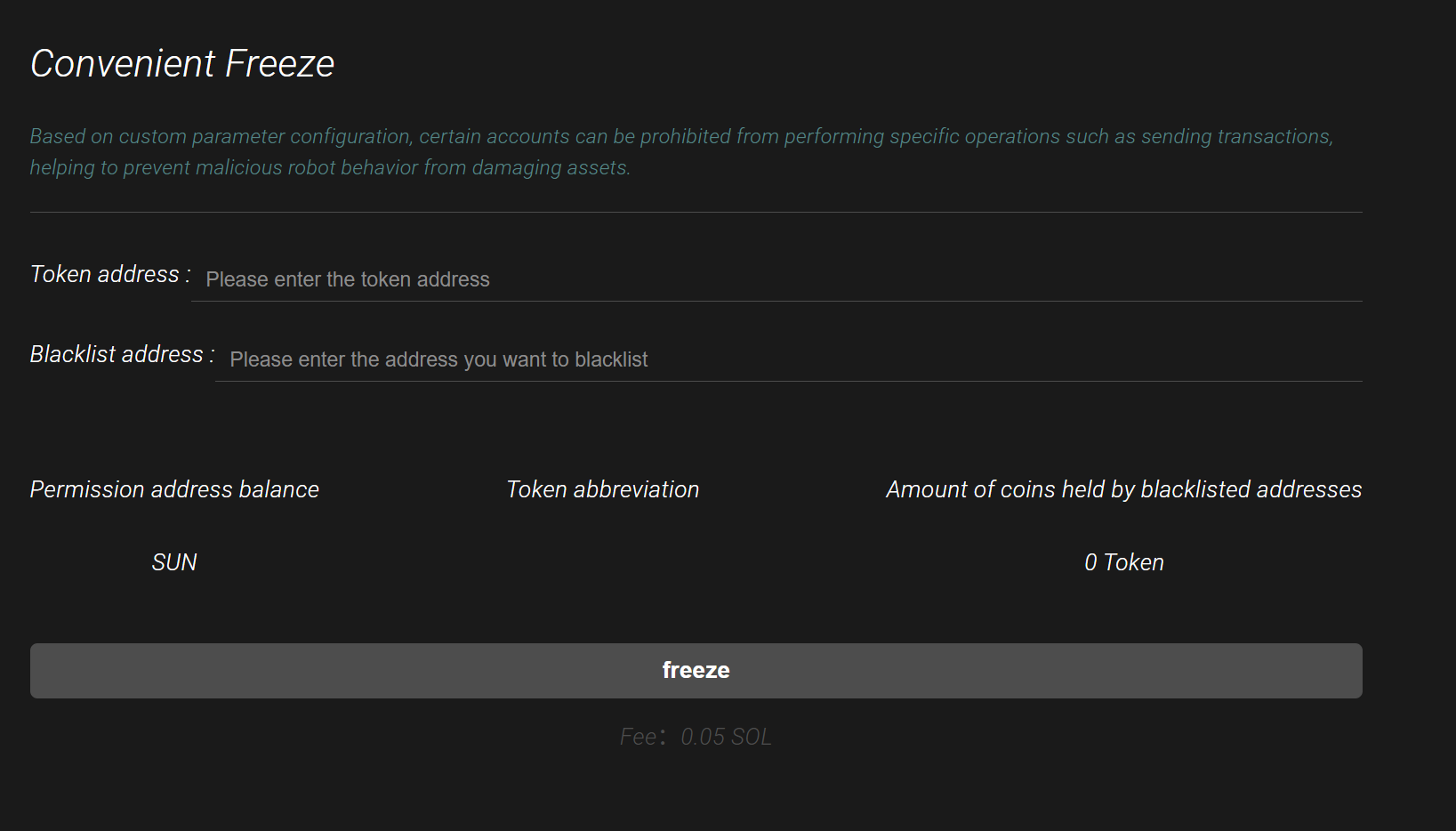
Step 2: Enter Token Address
In the input box in the center of the page, paste your Token Mint Address (e.g., a string like "EPjFWdd5AufqSSqeM2qN1xzybapC8G4wEGGkZwyTDt1v"). Click "Query" or press Enter, and the system will automatically verify it.
The page will display the token's Symbol (e.g., USDC), total supply, and whether the authority address matches your connected wallet. If it doesn't match, the system will prompt "Authority Mismatch," meaning you do not have permission to freeze this token. In this case, you need to switch to the correct wallet or transfer the authority using Solana Program Library (SPL) tools.
This step is based on Solana's Token Program, which queries the token's Metadata to confirm ownership. Note: Entering an incorrect address will cause the query to fail, so double-check. Upon success, the page loads the token details, providing the basic data for the subsequent freeze.
Step 3: Enter Address(es) to Blacklist
Next, in the input box below, enter the wallet address(es) you want to freeze (e.g., an address suspected of being a bot). Batch input is supported; separate multiple addresses with commas.
The system will query and display the Balance for each address in real-time. This helps you confirm the target: if the balance is zero, freezing is meaningless; if it's very high, further investigation might be needed to avoid mistakes.
Why show the balance? It's for transparency and decision support. Solana's on-chain data is public and can be queried via RPC nodes. If an address is invalid, the page will show an error. It's recommended to check the address activity history using tools like Solana FM or Birdeye before inputting to ensure it is indeed malicious.
Step 4: Click "Freeze"
Once everything is ready, click the "Freeze" button. Your wallet will pop up a transaction confirmation window showing the estimated Gas fee and operation details. Review carefully and click "Confirm."
After the transaction is broadcast to the Solana network, it is usually completed within seconds (thanks to Solana's high TPS). Upon success, the page will pop up a "Freeze Successful" message and record the Transaction ID. You can view the details via a Solana Explorer.
If it fails, possible reasons include network congestion, insufficient Gas, or permission issues. Retry or check the logs. After freezing, the address cannot transfer that specific token, but the balance remains visible. This is a reversible operation; if you need to unfreeze, you can use a similar tool or CLI commands.
Advanced Applications and Considerations
Quick Freeze goes beyond basic freezing and can be extended to project governance. For example, freezing bot addresses during an Airdrop event to ensure fair distribution, or quickly isolating affected accounts during a hacking incident. Potential risk: Mistakenly freezing legitimate users might cause community backlash, so it's advised to combine with data analysis tools (like Nansen) to confirm malicious intent. Legally, freezing must comply with jurisdictional regulations to avoid being seen as manipulation.
Frequently Asked Questions (FAQ):
-
Q: How to unfreeze after freezing?
A: Use GTokenTool's unfreeze function or Solana CLI commands likespl-token authorize. -
Q: Is batch freezing supported?
A: Yes, simply input multiple addresses. -
Q: Are Gas fees high?
A: Usually low, but they might increase during peak periods. -
Q: Does it work for all tokens?
A: Only for tokens where you hold the Freeze Authority.
Conclusion
Quick Freeze is an indispensable security tool in the Solana ecosystem. Through GTokenTool's simple interface, you can easily protect your assets from malicious threats. This tutorial has thoroughly covered every step from preparation to operation, hoping to help you apply it confidently.